How to Import eM Client to Office 365 Account Directly?


Summary: This blog discusses the need to import eM Client emails to Office 365 accounts. We are going to discuss some powerful solution to effortlessly generate the results as per needs.
In this fast-paced digital environment, many users and businesses are regularly shifting to a cloud-based solution to gain better data accessibility, data secuity, and collaboration. Office 365 has emerged as one of the leading cloud platforms. It provides multiple tools such as Outlook, Teams, Calendars, ad contacts. However, as organizations move forward to more scalable cloud solutions, the need to Import eM Client to Office 365 becomes more crucial.
Why Do Users Need to Import eM Client to Office 365?
There’s a reason for everything, and so do the conversion of eM Client to Office 365 has:
- Enhanced Security: Microsoft 365 offers the top-level security and encryption that protects all your data from threats and errors seamlessly.
- Cloud Accessibility: Office 365 officers you access from anywhere on your device, while eM Client stores your data locally that you can not access remotely.
- Backup and Compliance: Multiple organizations often migrate Office 365 for regulatory compliance, which offers you better data retention and easy recovery options.
- Centralized Administrations: Office 365’s centralized user management is an ideal choice for IT administrators to manage their eM Client email data in a more convenient way.
- Collaboration: Office 365 allows real-time collaboration such as Teams, OneDrive, SharePoint, and integrated Outlook features.
How to Import eM Client to Office 365 Manually?
eM Client stores its emails in .eml file format, which is not directly supported by Office 365 for import into any other email clients. Below are a couple of indirect manual methods to move eM Client to Office 365.
Method 1: Drag and Drop EML files to Outlook (configured with Office 365)
- First of all, open your Outlook.
- Go to the File tab and then click on the Add Account button.
- Now, setup your account manually.
- Choose the POP or IMAP option and click on Next.
- Now, fill in all your login credentials of Office 365 and click on Next.
- Go to the Outgoing tab and select the My outgoing server.
- Now fill in all the Advanced details.
- Now click on the Next button and then Close to complete this part.
- After this go to the folder where your EML files are saved.
- Right click on them and choose Outlook under option Open.
- Lastly choose the Move option to select a folder to move your files that you want to transfer.
Why Do Professionals Avoid this Method?
- This method is feasible only for a small number of emails.
- It does not support bulk migration if you have a large amount of data.
- There is a high chance of losing your data through this method.
- There is a high risk of corruption.
Method 2: Import eM Client to Office 365 Professionally?
You can perform eM Client to Office 365 migration using a professional solution. But, before performing the conversion, you have to first export EML files from eM Client and then directly import them to Office 365 account.
Download MailsWare eM Client to Office 365 Converter in order to import unlimited files from eM Client to Office 365 account. During the installation, the tool asks you to select the language as per your requirements. With this application, one can convert multiple eM Client files at once. Follow the steps given below to perform the direct migration into Office 365 account.
Download the software first:
- Firstly, install the software and open it.
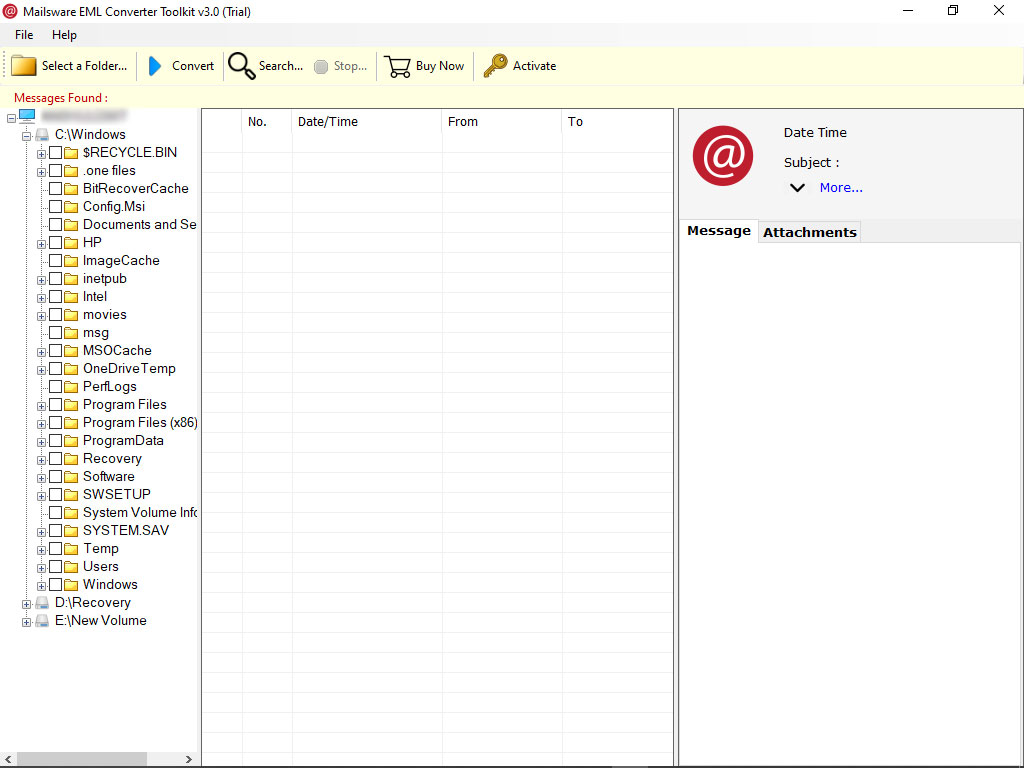
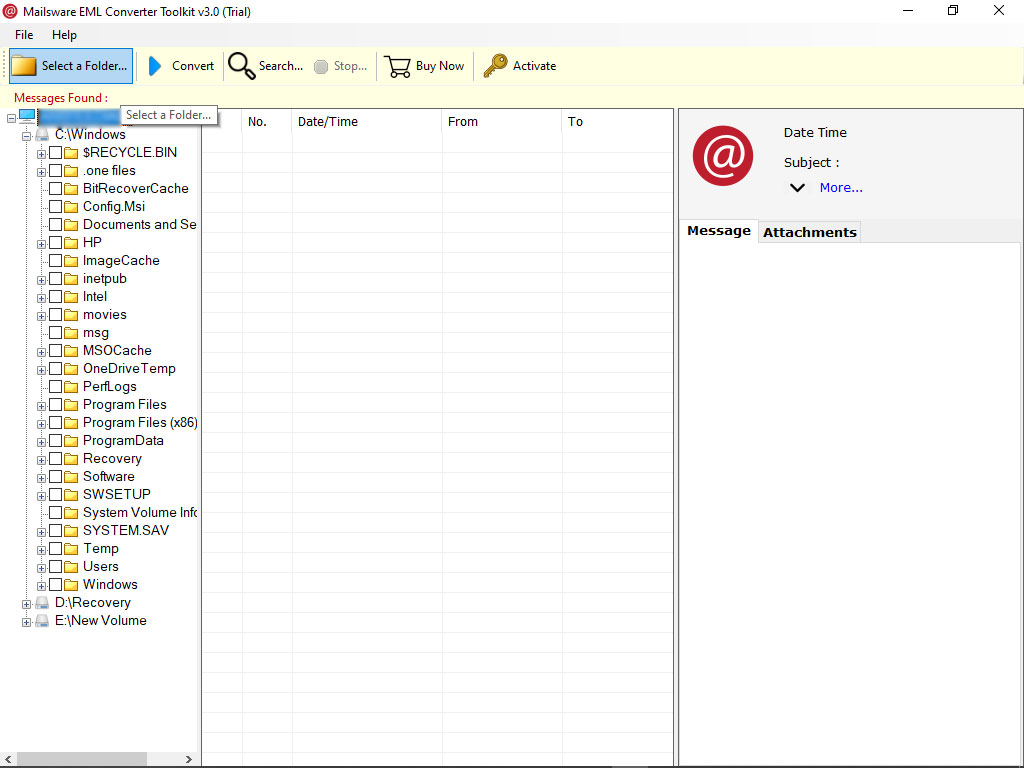
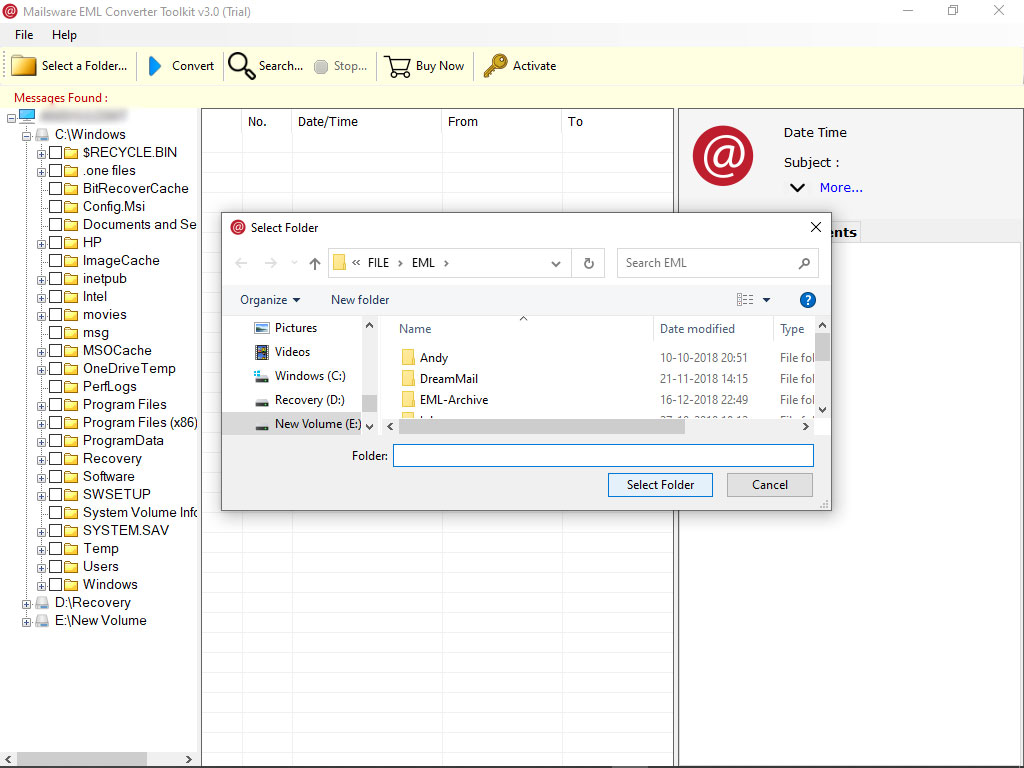
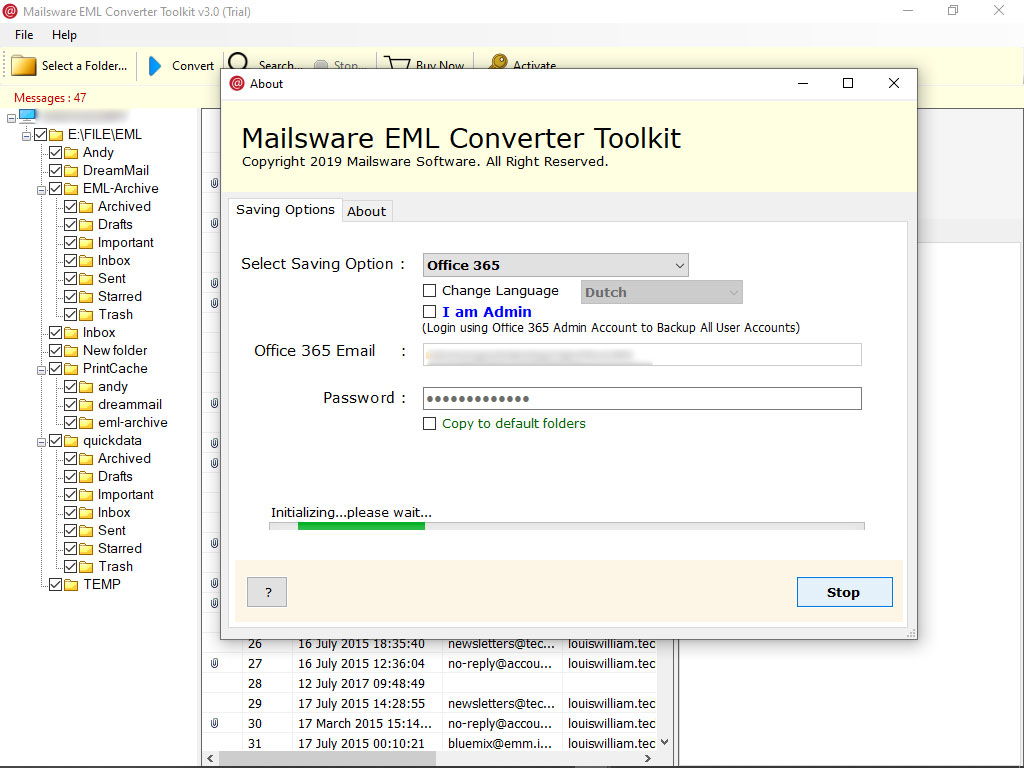
- Now, click on Select a Folder option to upload your files that you want to move.
- Check the preview of your uploaded eM Client data files carefully.
- Now, choose Office 365 as file saving format from the list.
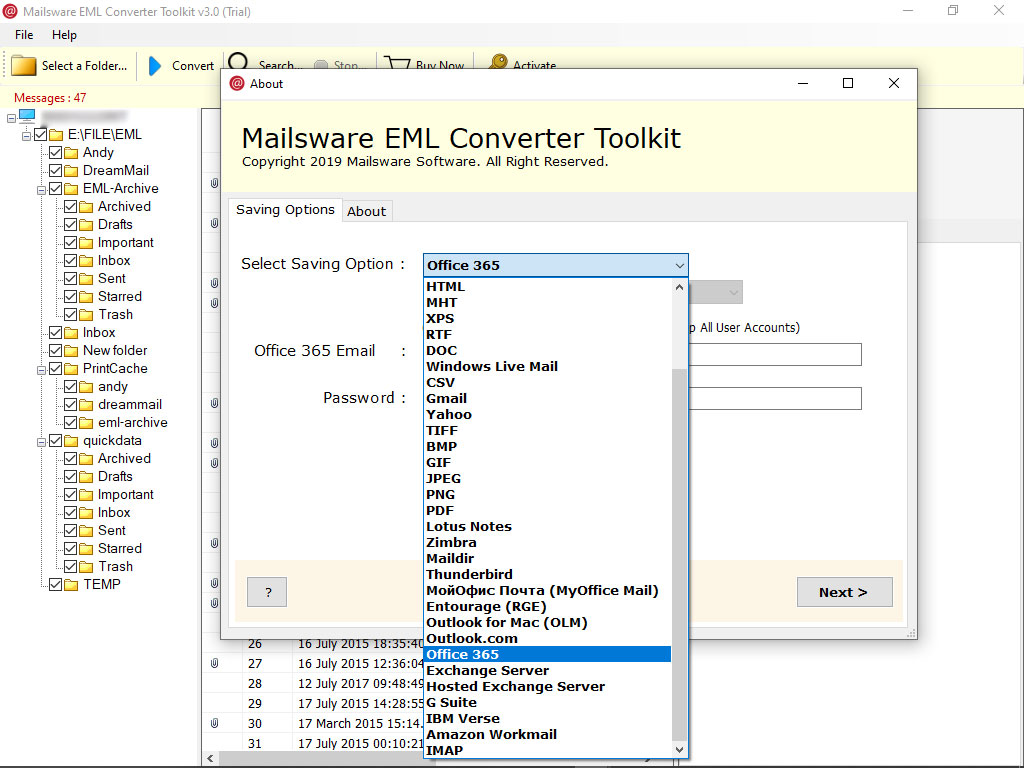
- After this enter your Office 365 account’s credentials to continue.
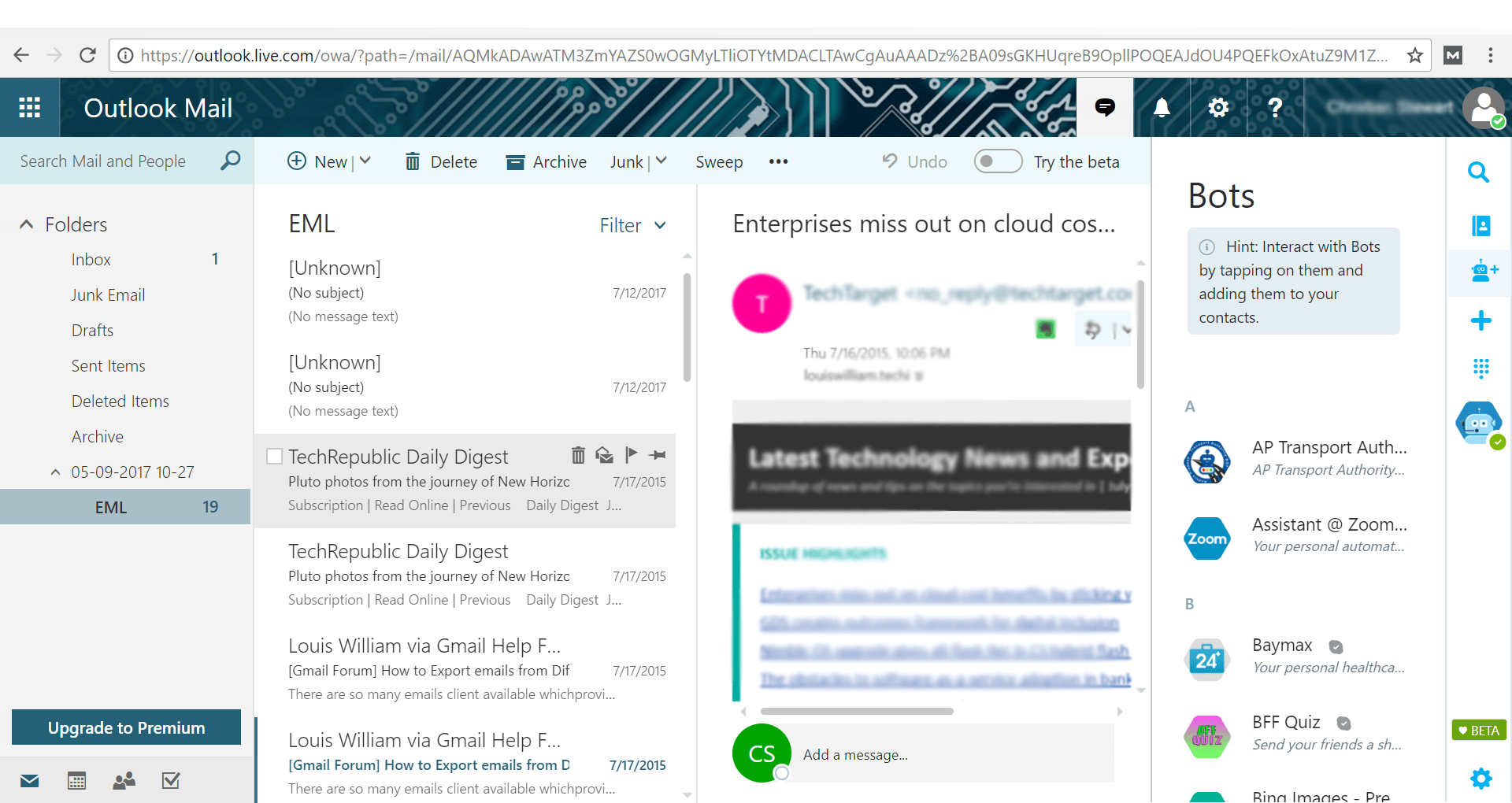
- Now you can open your Office 365 account and check all your imported data.
Benefits of Using eM Client to Office 365 Converter
- Change Default Language: During the installation, the software provides multiple languages. So, using this software, one can change the default language as per their requirements.
- Batch Migration Feature: If you are having a large number of eM Client files then please take the help of bulk migration feature. Using this feature, one can convert multiple files at once and save their time and effort as well.
- Import Emails with Attachments: eM Client to Office 365 Converter has the ability to convert emails with their respective attachments. So, get the complete conversion of your eM Client application.
- All Windows Compatible Application: It is a Windows-based application that successfully support all the edition of Windows OS.
- Migrate eM Client Emails to all Office 365 Subscription accounts: If you have one and more than one Office 365 Subscription email accounts and you want to upload eM Client database to both Subscription account, then you can easily do this with the help of MailsWare Software.
Conclusion
In the above blog, we provided an incredible software to import eM Client emails to Outlook 365 account. However, It is a tested tool which is completely free from any type of trouble. The software also come up with the free demo edition by which one can easily understand the complete software working and functionality.
