Import OLM to Exchange Online Using Top 2 Secure Methods


Looking for the quickest, easiest, and best solution to import OLM to Exchange Online, and still haven’t gotten the right one? Don’t worry, after reading this blog, you will easily upload OLM to Exchange Server. In this blog, we will cover two techniques: a manual method & an automatic solution. We are using Legacy Outlook on Mac for a manual workaround and an automated tool. The manual method requires technical knowledge, time, & patience. Secondly, the free method is prone to human errors and risk of account corruption.
If you are a smart user, you will also use an automatic solution to avoid technical troubles and do a hassle-free migration. Whether you are an IT expert or a normal user who wants to import OLM data into Exchange Server due to platform limitations, for data migration, or for cross-platform access. A professionally tested automatic solution performs better than manual method to import OLM to Exchange Server.
Using free methods often fails to end tasks, is not capable of processing data in batches, and does not guarantee complete data integrity. However, if you still want to use a freeway method, then get ready to face the challenges of a free manual method.
Manual Method to Import OLM to Exchange Online
There is no direct method to import OLM to Exchange Online, so we are using Outlook for Mac to upload OLM to Exchange Online. We simply configure an Exchange Online account with Outlook Mac and import OLM file data onto it. If you want to use this free method, then follow the steps below carefully to complete migrating OLM file data to Exchange for free.
1st Step: Configure Exchange Online Account in Mac Outlook
- Open Legacy Outlook on Mac device.
- Then, click on “Tools” menu, and choose “Accounts.”
- After that, choose “Email,” option, type “Exchange Online” account email address, and hit “Add” button.
- Create a “Folder” in configured Gmail account.
- Wait to sync your account completely.
2nd Step: Import OLM File into Outlook Mac
- Now, click on “File,” choose “Import” button, and select option “Outlook for Mac Data File (.olm).”
- Then, choose “OLM” file, and click on “Import.”
- Finally, wait to finish the import process of OLM file.
- Done! Your import OLM to Exchange Online is completed.
Limitations of Using Manual Way for OLM to Exchange Online
- Using manual method for OLM to Exchange Online, users need a good internet connection and legacy Outlook application on their Mac PC.
- This method might freeze or slow down your Mac PC in case of large-sized or bulk OLM files.
- You cannot control folder structure mapping, duplicate handling rules, and selective migration.
- If you are a non-technical or newbie user, then this method is not useful for you.
- While using this method to import OLM to Exchange Online, users need to initiate and monitor sync process manually. Due to this, the chances of human errors and data corruption increase.
- If this method is not applied correctly, you might miss or lose some emails, attachments, calendar, and contacts.
- The use of a manual method becomes time-consuming, especially when your mailbox size is large, facing slow internet, and server loads.
These were the major challenges that you might face if you don’t follow the given instructions carefully.
How to Import OLM to Exchange Online Automatically?
The use of Outlook for Mac to import OLM to Exchange Online manually is fine, but as per their unavoidable limitations, using manual method is not suitable to upload OLM to Exchange Online. So, to migrate OLM to Exchange Online from Mac, accurately with no data loss, users can try OLM Converter Toolkit by MailsWare on their Mac device for secure and quick migration. This tool import OLM file to Exchange Online while maintaining full data integrity, due to which, migration process becomes simple for bulk and single OLM files. It preserves metadata and attachments during the complete import process. Secondly, the folder structure is maintained throughout migration process.
Hit the buttons below to download the free trial version of this automatic tool on Mac & Windows. Check its working capacity with its bulk conversion ability, with email attachments.
Steps of Automatic Solution
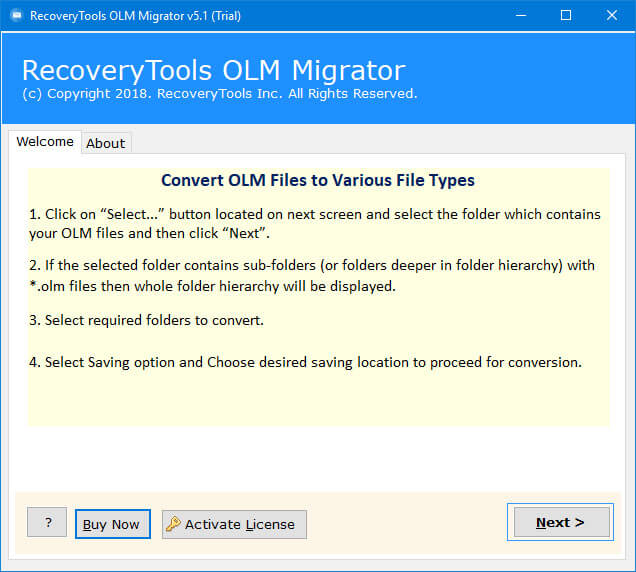
- Run the tool on your Mac PC & click “Next.”
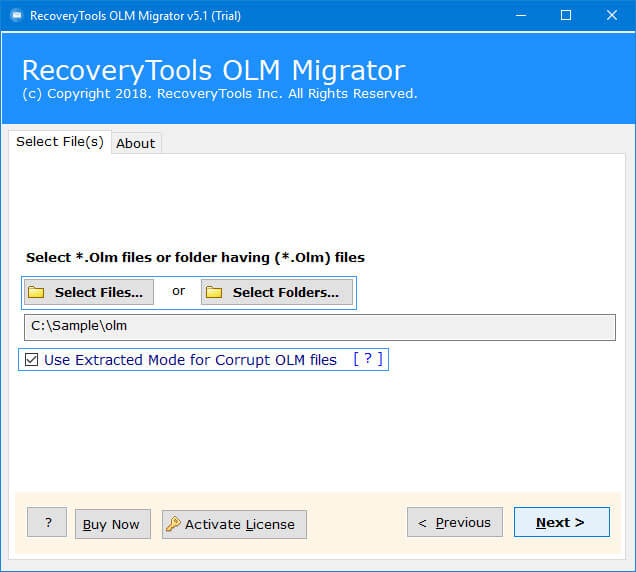
- Then, choose option between “Select Files” or “Select Folder” and hit “Next” button.
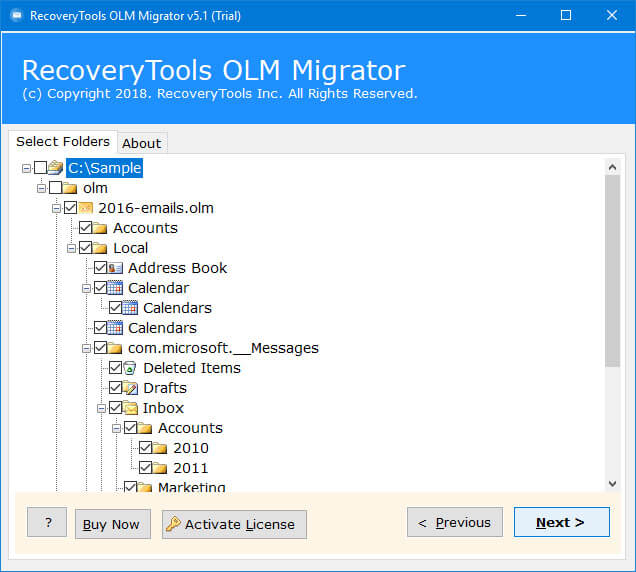
- After that, select the required folder by “Checking” in the folder Preview Panel and click “Next.”
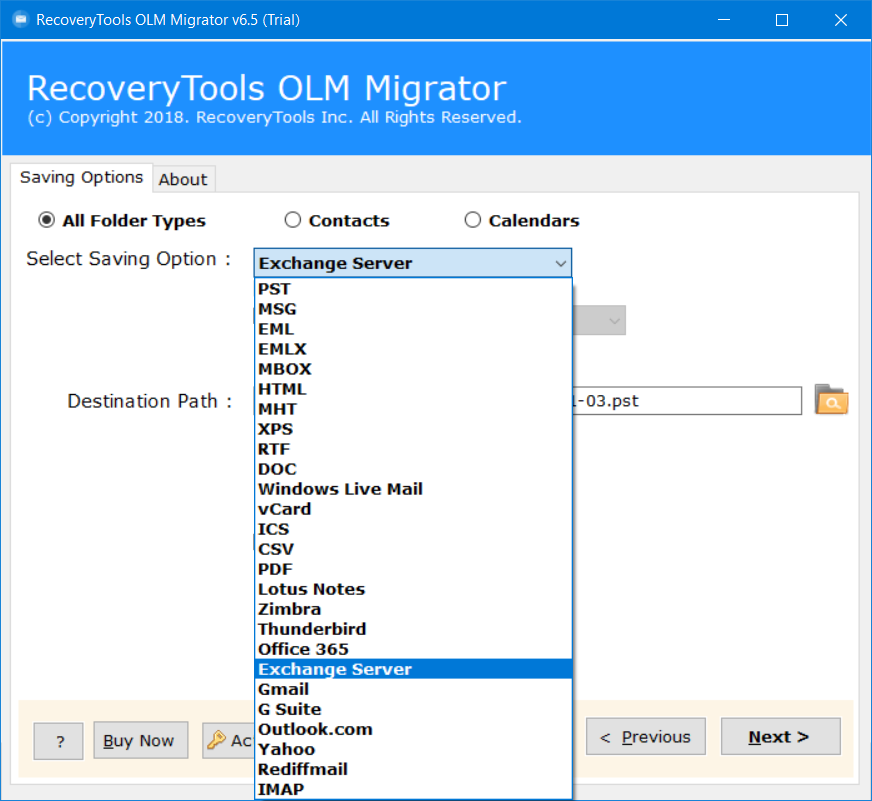
- Here, choose “Exchange Server” as a saving option and enter Exchange Online account ID along with password & server name.
- Then, select “I am Admin” option to import emails & messages from OLM file to multiple Exchange accounts.
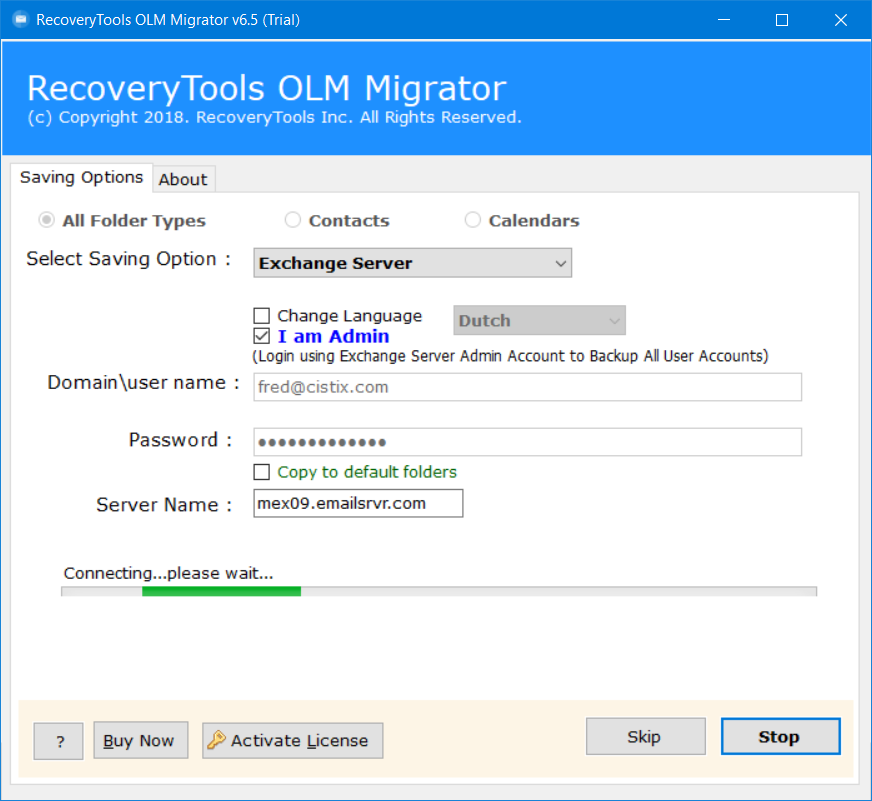
- Finally, click on “Connect” button to start import OLM to Exchange Online.
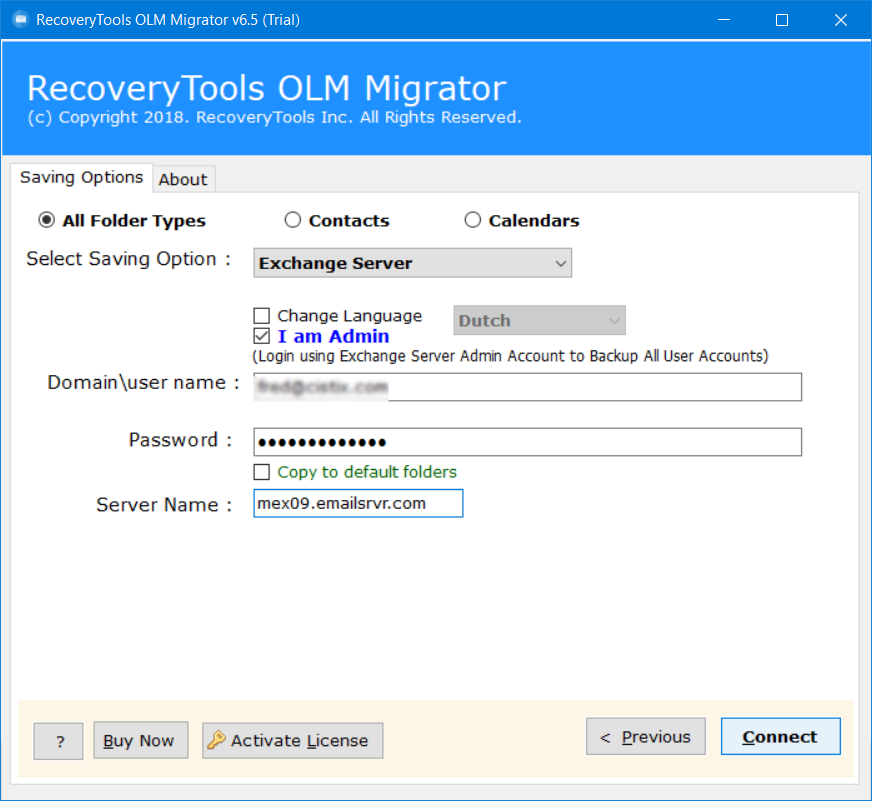
- Done! your OLM files started directly uploading to the Exchange Online Account.
Advantages of Automatic Solution to Upload OLM to Exchange Online
- This tool provides multiple saving formats, such as convert OLM to PST, MSG, EML, MBOX, and 25 others.
- Windows users can also import OLM to an Exchange Online account using the Windows version of this tool.
- Software provides a bulk conversion option, which allows users to convert OLM to Thunderbird at once.
- This automated tool is compatible with all the latest versions of both Mac & Windows operating systems.
- Using this utility, users can also directly convert OLM to Gmail without data loss within just a few clicks.
- Users can effectively migrate all OLM file items at once from folders and subfolders of OLM files using this tool.
These were the benefits of using this automatic solution to upload OLM to Exchange Online.
Final Thoughts on Import OLM File to Exchange Online
At the end of this blog, on topic “How to import OLM to Exchange Online.” We had covered two best methods to upload OLM to Exchange Online. We found the use of manual method to import OLM file to Exchange Online is time-consuming, not useful for bulk upload, and not easy for non-technical users. On the other hand, using an automatic solution to import is faster, safer, and easier for both technical and newbie users.
Now, it’s totally up to you which method you are going to choose between manual and automatic to safely import OLM to Exchange Online.
